Image to video AI free: the best option for sellers
In short
Most free image to video AI tools give you a small allowance of credits, a watermark, or both, and nearly all of them ask you to sign in first.
The model treats your photo as the first frame and invents the motion, which is why logos and labels can drift.
For a product video, SuperReels is our recommended free option: your first video is free with no card and no watermark, made from a tested template so you skip the prompt writing. You do need to sign in.

Search for image to video AI free and you will find dozens of tools promising to bring a photo to life at no cost. Most of them can, once. Knowing what the free part covers saves you an afternoon of sign-ups and half-finished clips, and if what you need is a video of a product you sell, it points to one clear choice.
Free image to video AI options compared
| Tool | Free offer when we checked in October 2026 |
|---|---|
| SuperReels (our pick for product videos) | First video free, no card, no watermark, commercial use allowed |
| Runway | 125 one-time credits |
| Pika | Free plan with credit packs only; no commercial licence on Free or Starter |
| Canva | Magic Video, from 1 to 10 of your own photos or clips, on all plans |
Consider Runway or Pika if you want to experiment with general video models, and Canva if you already have your own clips to cut together.
What image to video AI free plans usually include
Turning a still image into video uses a lot of computing power for every second of output, so free offers tend to fall into a few patterns:
- A one-off allowance. You get some credits when you join and pay once they run out. Runway's free plan, for example, came with 125 one-time credits when we checked in October 2026.
- Credit packs only. A free account with no monthly credits, where you buy packs to generate. Pika's free plan was listed as "0 credits / month, packs only" in October 2026.
- A watermark. The video is free but carries the tool's logo, which you pay to remove.
- No commercial licence. Some free and entry plans do not let you use the result in ads. Pika's free and Starter plans, for instance, did not include a commercial licence as of October 2026.
- A sign-in. Almost every tool asks for an account, even when it asks for no card.
None of this is a trick. It is just worth checking which of these applies before you spend time on a video you cannot post.
How photo to video AI works, in simple terms
When you convert an image to video with AI, the model does not animate your photo the way a person would in an editor. It treats your picture as the first frame and predicts what the next frames should look like, based on patterns it learned from a huge amount of video. Your text prompt, if there is one, steers that prediction: the camera moves left, the steam rises, the hand picks up the jar.
Because the model is predicting rather than copying, every run comes out a little different, and anything it cannot see in your photo it has to make up.
Why products drift
Drift is when your product slowly stops looking like your product. The label text turns to nonsense, the logo bends, the bottle grows a second cap. It happens for a few reasons:
- One angle. The model only sees the front, so the back and sides are guesses.
- Fine detail. Small text and thin patterns are hard to keep sharp across frames.
- Too much motion. The more the camera or product moves, the more the model has to invent.
- A busy photo. Clutter around the product gives the model more to confuse it with.
You can reduce drift with a clean photo of the product on a plain background, good light, and a prompt that keeps the movement simple. Google's own help for its Flow tool gives similar advice: use product references on a plain or segmented background, as of October 2026.
What the finished video looks like
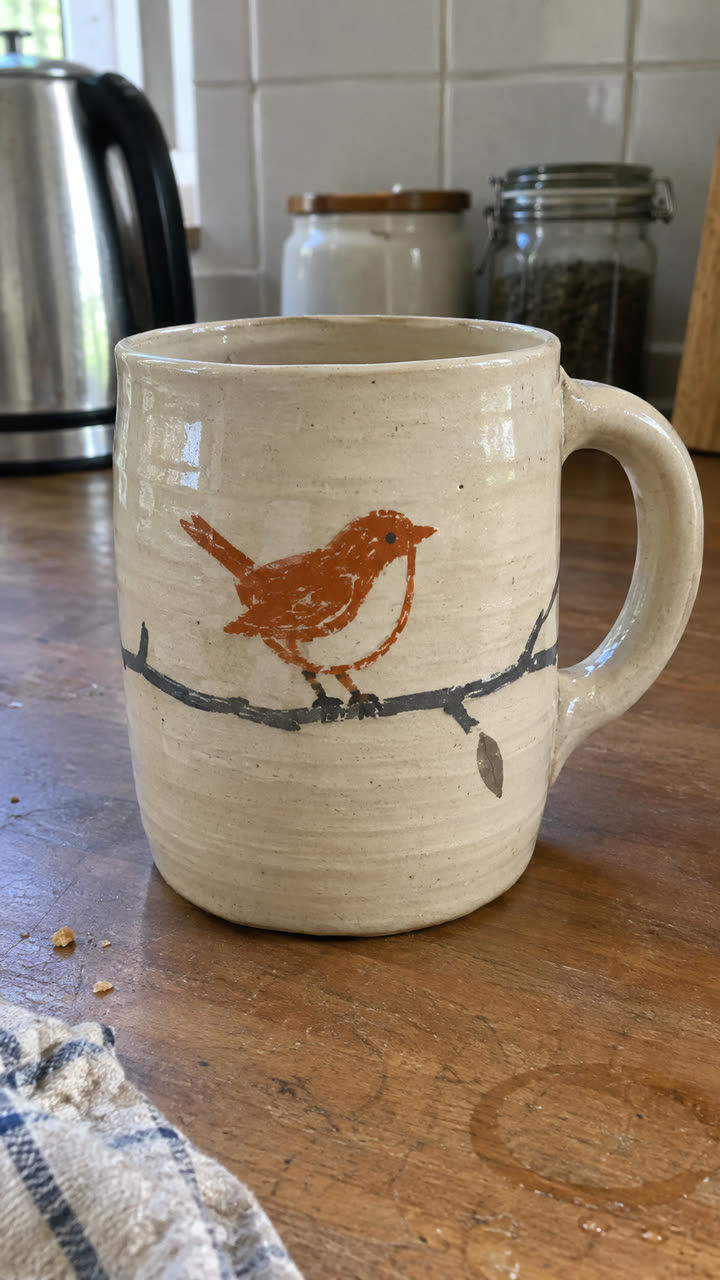
Made with the Product ad template from the single mug photo on the left, in a few minutes, with no filming or editing. See the exact steps and details we used.
Our verdict: why SuperReels is the best free choice for sellers
SuperReels is an image to video tool built for products, and it tackles drift at the source. Each template is a prompt that has already been tested, so you are not guessing at camera moves or wording, and you never see or write the prompt.
- Pick a template from the mockup library, such as a product ad with a reveal and end card.
- Upload your product photo and fill in a few details in plain words.
- Generate. A vertical 9:16 video of 10 or 15 seconds arrives in a few minutes.
- Post it to Reels, TikTok or Shorts.
The honest version of our free offer: your first video is free, with no card, no watermark and commercial use allowed. You do need to sign in. After that, plans start at $10 a month for about 7 videos, the cost is shown before you make each one, and a failed video refunds automatically. Paid plans add image templates and AI product photos too.
What it does not do: square or landscape video, or a free-form prompt box below the Creator plan.
Questions
Is there image to video AI with no sign up?
Rarely for anything worth keeping. Generating video costs the provider real money per second, so most tools tie free use to an account. SuperReels needs a sign-in too, with no card for the first video.
Why does my product look different in the video?
The model only sees your photo from one angle and has to imagine everything else. Small text, logos and fine patterns are the first things to change as the camera or product moves.
Can I use a free AI video commercially?
It depends on the tool. Some free and entry plans exclude a commercial licence, so read the plan page before you post an ad. SuperReels allows commercial use on every video, including the free one.