How to create a product video from your photos
In short
Pick the Product ad template, upload one clear photo of your product, fill in six short details, and press Generate. A finished 10 second vertical ad arrives in a few minutes.
Below is a real example: one phone photo of a handmade mug, the exact words we typed, and the video SuperReels made from them.
This guide shows how to create a product video from photos you already have, using one real example from start to finish: a handmade stoneware mug, one photo, and the Product ad template.
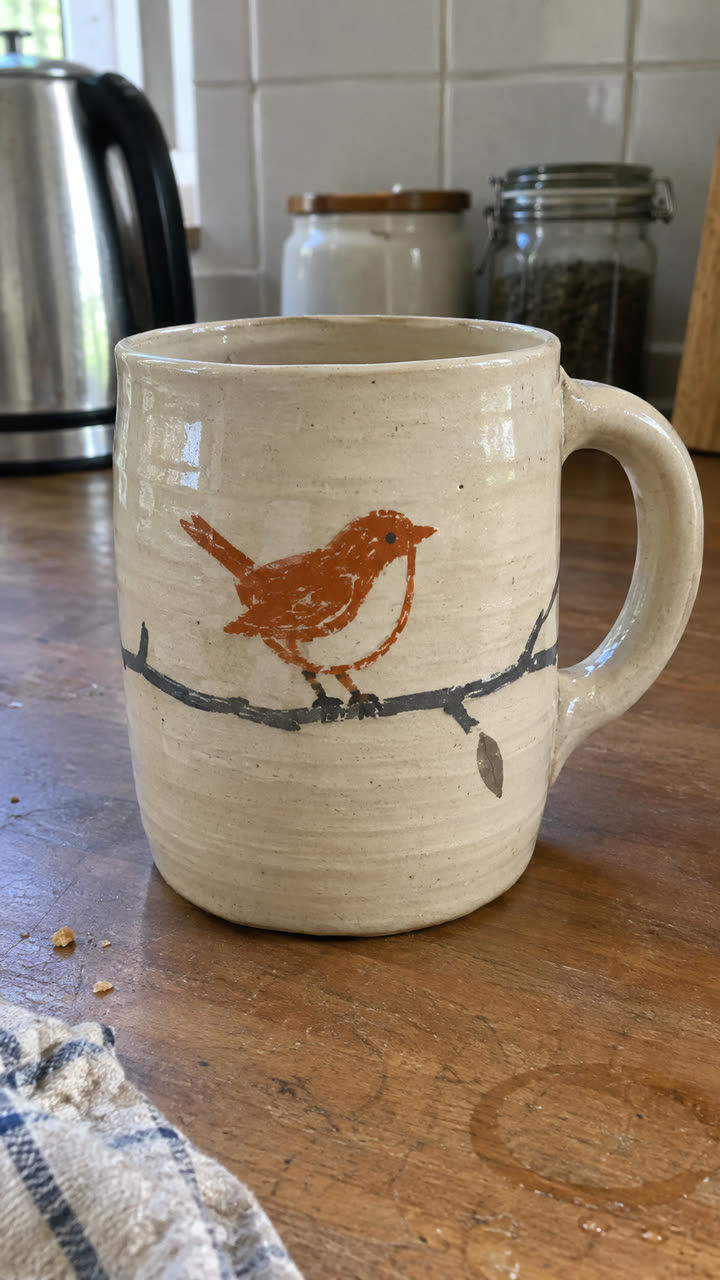
What you need before you start
- One clear photo of the product. Daylight, a plain surface, the whole product in frame. A second angle helps but is optional.
- A one-line description of what it is.
- A free account. Your first video is free and needs no card.
Step 1: open the Product ad template
Go to the mockup library and open Product ad. It makes a 10 second ad in the classic structure: the problem, the reveal, the features, the payoff and an end card.
Step 2: upload your product photo
Add the photo in the first box. The template matches every shot to it, so the mug in the video keeps its colour, shape and painted wren as closely as the model allows.
Step 3: fill in the details
These are the exact words we typed. Nothing else was needed.
| Field | What we typed |
|---|---|
| Product | Handmade cream stoneware mug with a burnt orange wren on a charcoal branch |
| Who | Young woman |
| The problem | Sipping coffee gone cold from a chipped office mug at a cluttered desk |
| Hook caption | Cold coffee again? |
| Feature captions | Handcrafted durable stoneware, Retains heat longer, Hand painted art |
| Where it is used | Sipping warm brew beside a sunny morning window |
| End card headline | Meet the wren mug |
Stuck on a field? Fill in the ones you know and press Write the rest for me: it drafts the remaining details from what you entered, and you can edit them before generating.
Step 4: pick a resolution and generate
We made this one at 1080p, which needs the Creator plan. 720p works on every plan and is what the free first video uses. The cost is shown on the button before you press it, and a video that fails refunds automatically. It takes a few minutes, and you can leave the page while it runs.
Step 5: download and post
The finished video lands in Your reels, vertical 9:16 with no watermark. Download it and post it to Instagram Reels, TikTok or Facebook, or run it as an ad.
Want another version from the same photo?
Change one or two details and generate again. A new hook caption, a different problem or a new setting gives you a fresh ad without a new photo, which is the easiest way to test which angle sells best.
Tips for a better result
- Shoot the product on its own, with no hands or clutter around it.
- Keep captions short: three to five words read in the time they are on screen.
- Name the setting your customer actually uses the product in.
- Watch the result before posting. The video is generated, so check small details such as text on the product.
Questions
How many photos do I need?
One is enough. The Product ad template takes up to three, and extra angles help the product stay close to the real thing.
Can I make the video without writing anything?
You need a short product description. Press Write the rest for me and the remaining details are drafted for you to check.
How long does it take?
A few minutes from pressing Generate. The finished video waits in Your reels.
Is the first video free?
Yes, at 720p, with no card and no watermark.